Creating a New Food and Beverage Item
SnowCloud provides a straightforward process for creating and managing food and beverage items. Follow the steps below to set up a new F&B item in your SnowCloud environment.
Accessing the Item Creation Interface
-
Start by logging into your SnowCloud account.
-
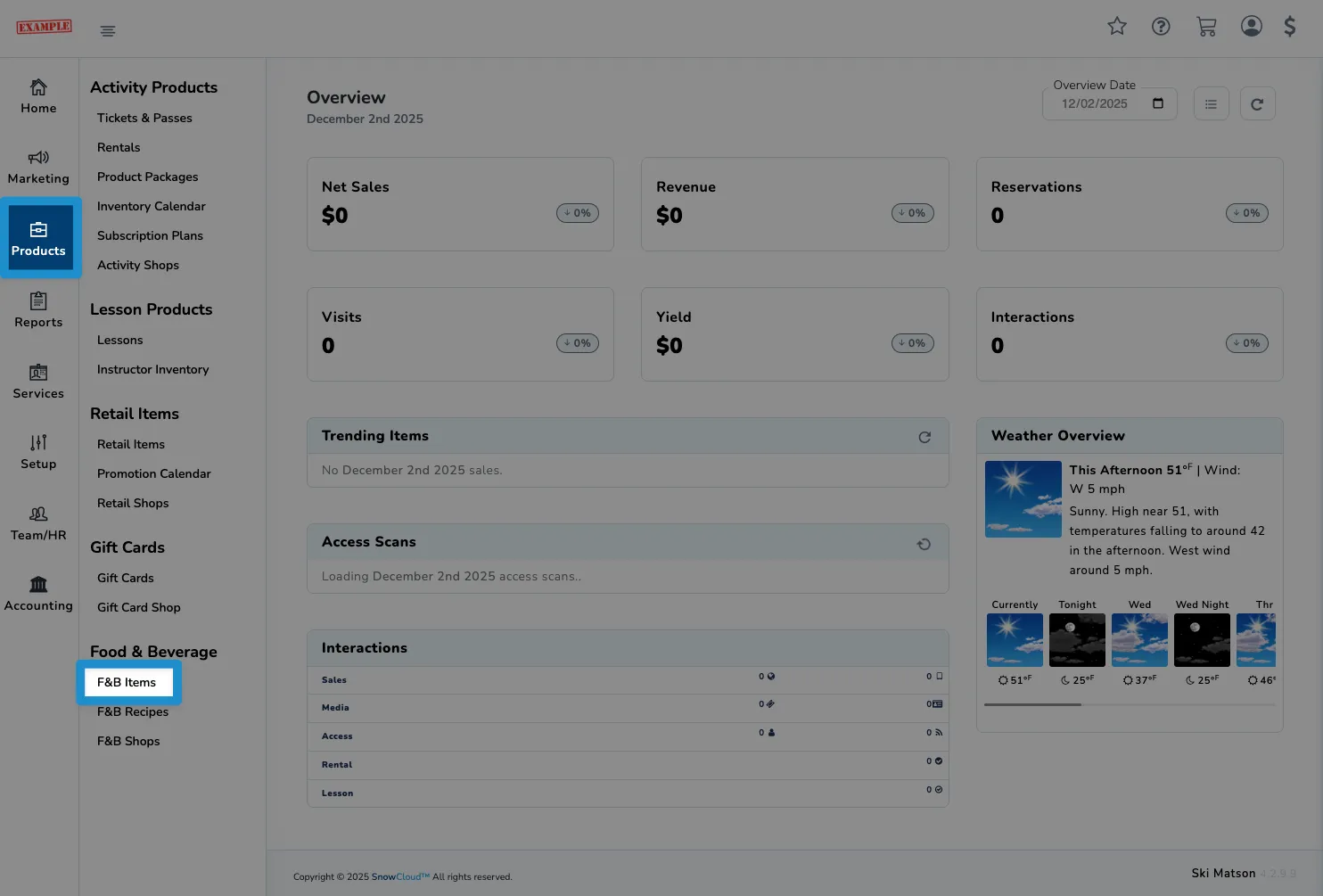
From the left side navigation menu, click on Products, then on F&B Items.
-
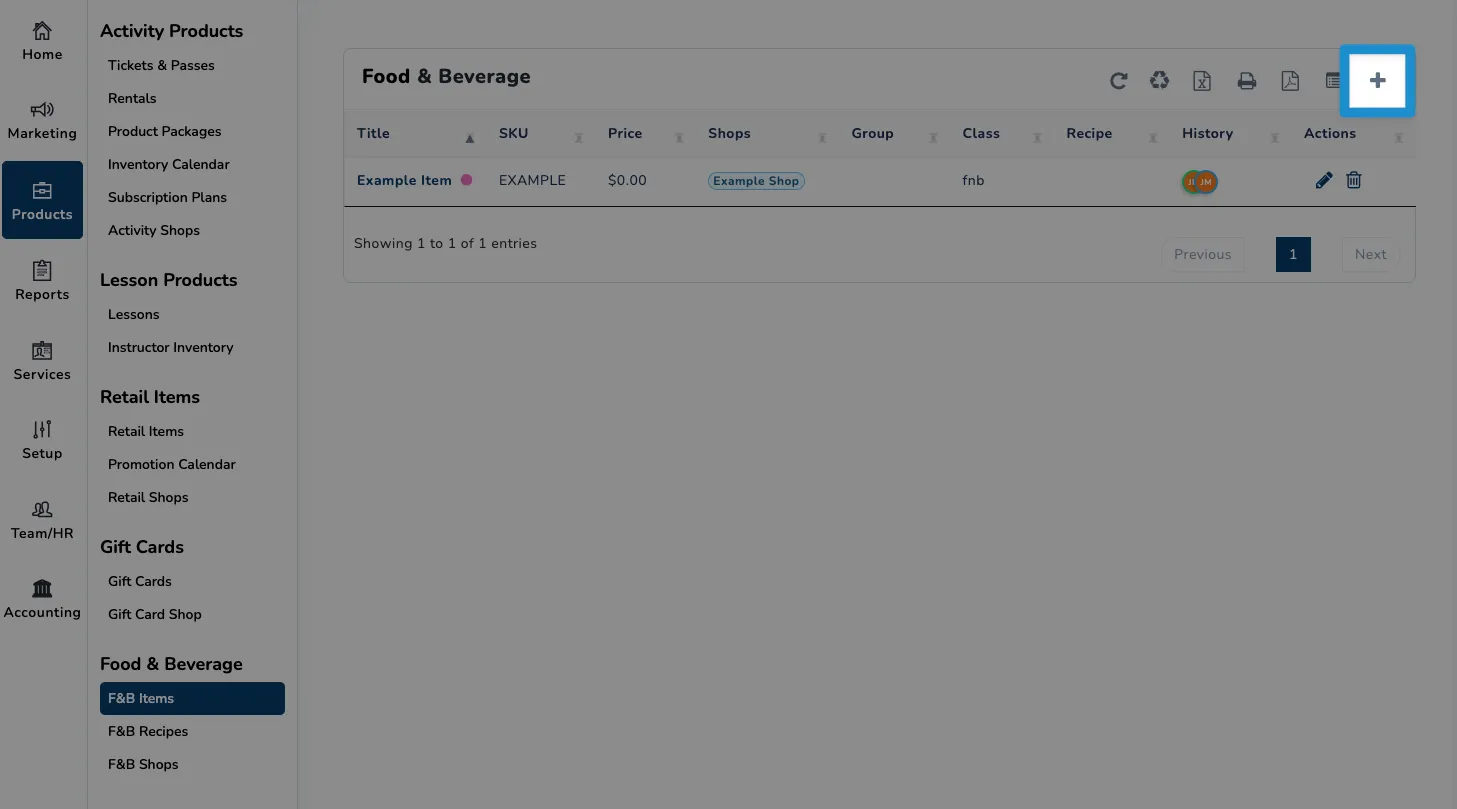
You should now see a list of any existing items.
To create a new food and beverage item, click on the plus icon at the top right of the screen.
Configuring a New Item
Now that you know how to access the item creation interface, follow these steps to configure your new food and beverage item:
-
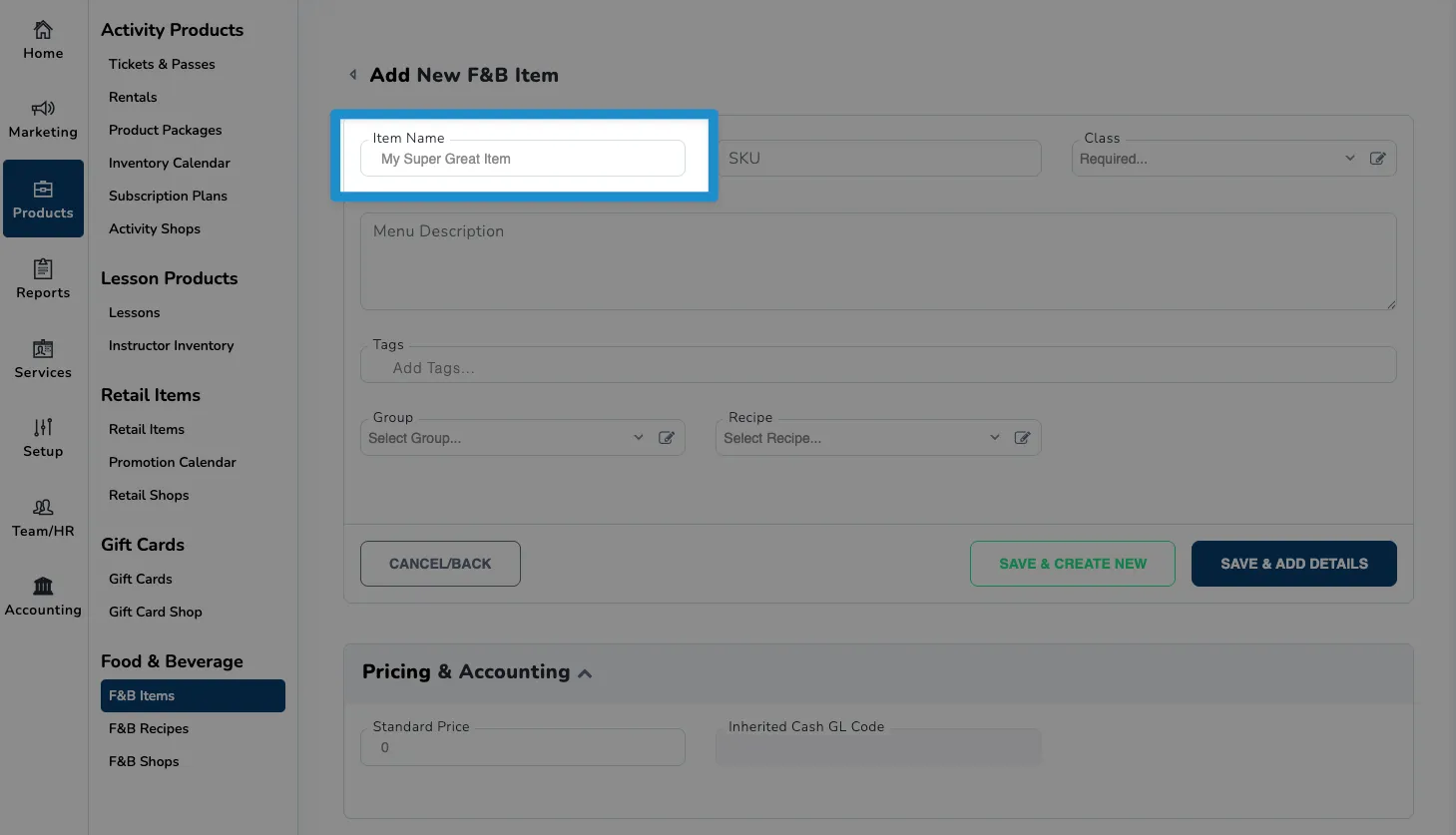
Let’s start by adding a name. Using the Item Name field, enter the name of your new food or beverage item.
-
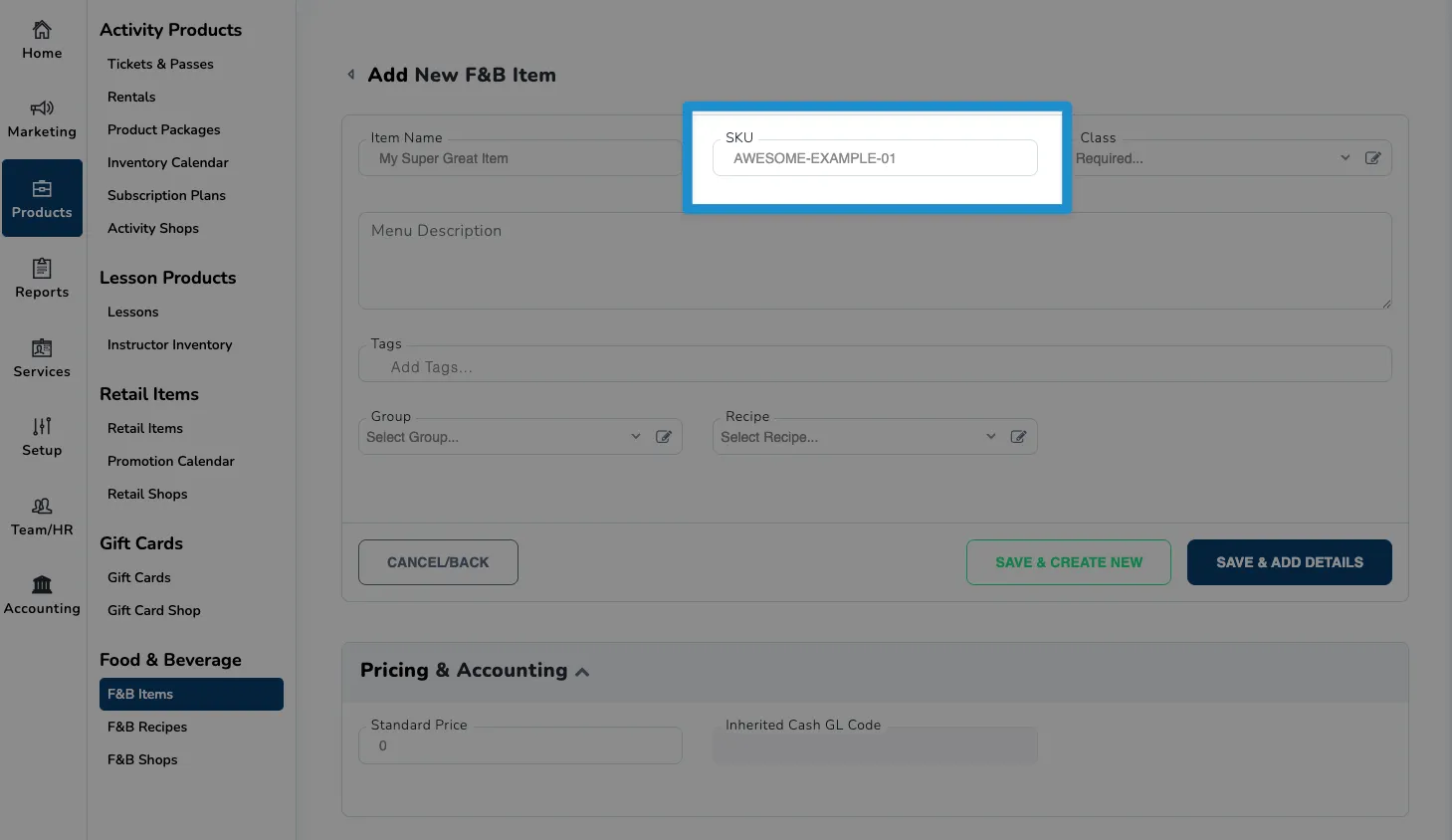
Next, we’ll assign a SKU to the item. In the SKU field, enter a unique identifier for the item.
-
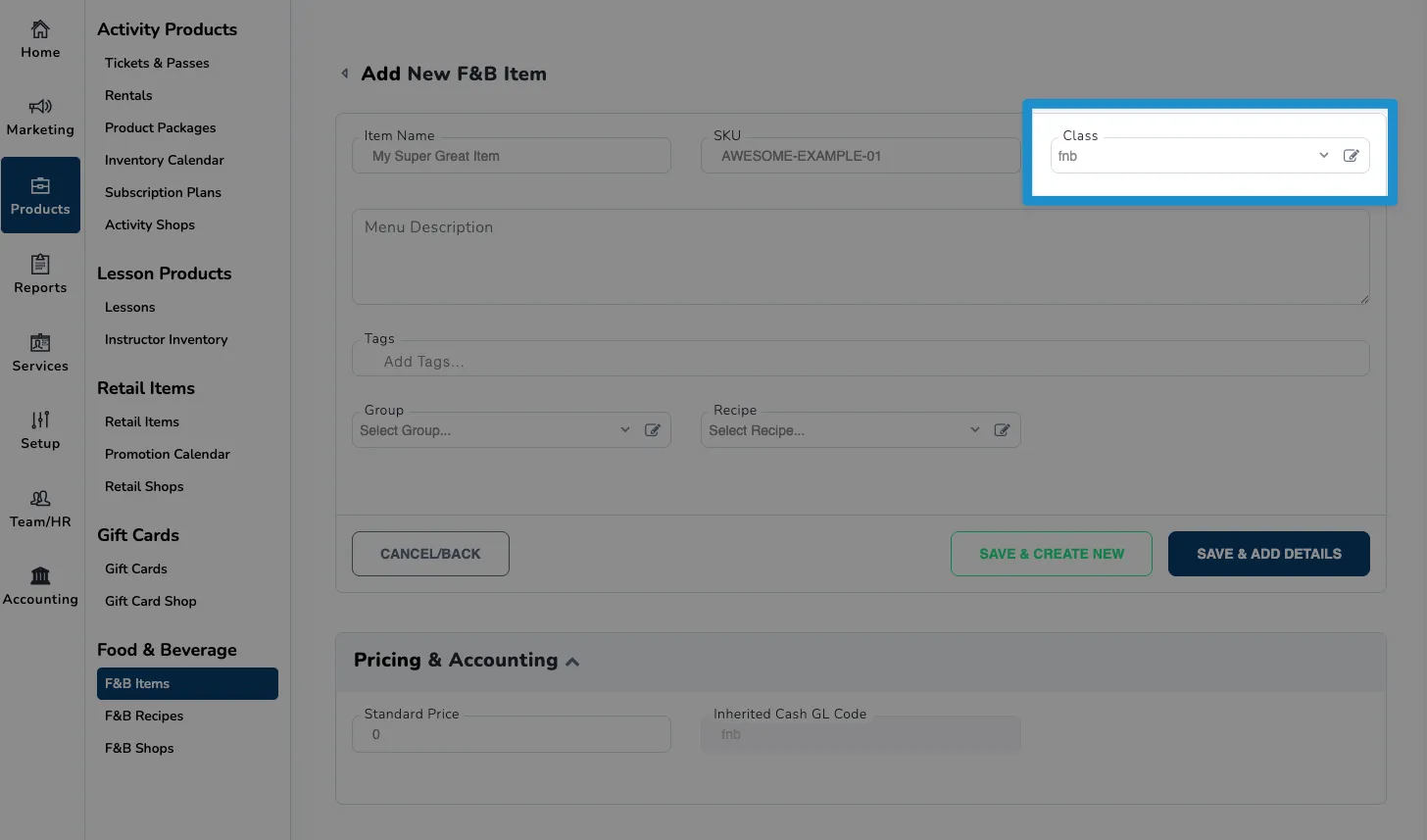
Using the Class dropdown, select the appropriate accounting GL class for the item. This ensures that sales of this item are properly categorized in your financial records.
-
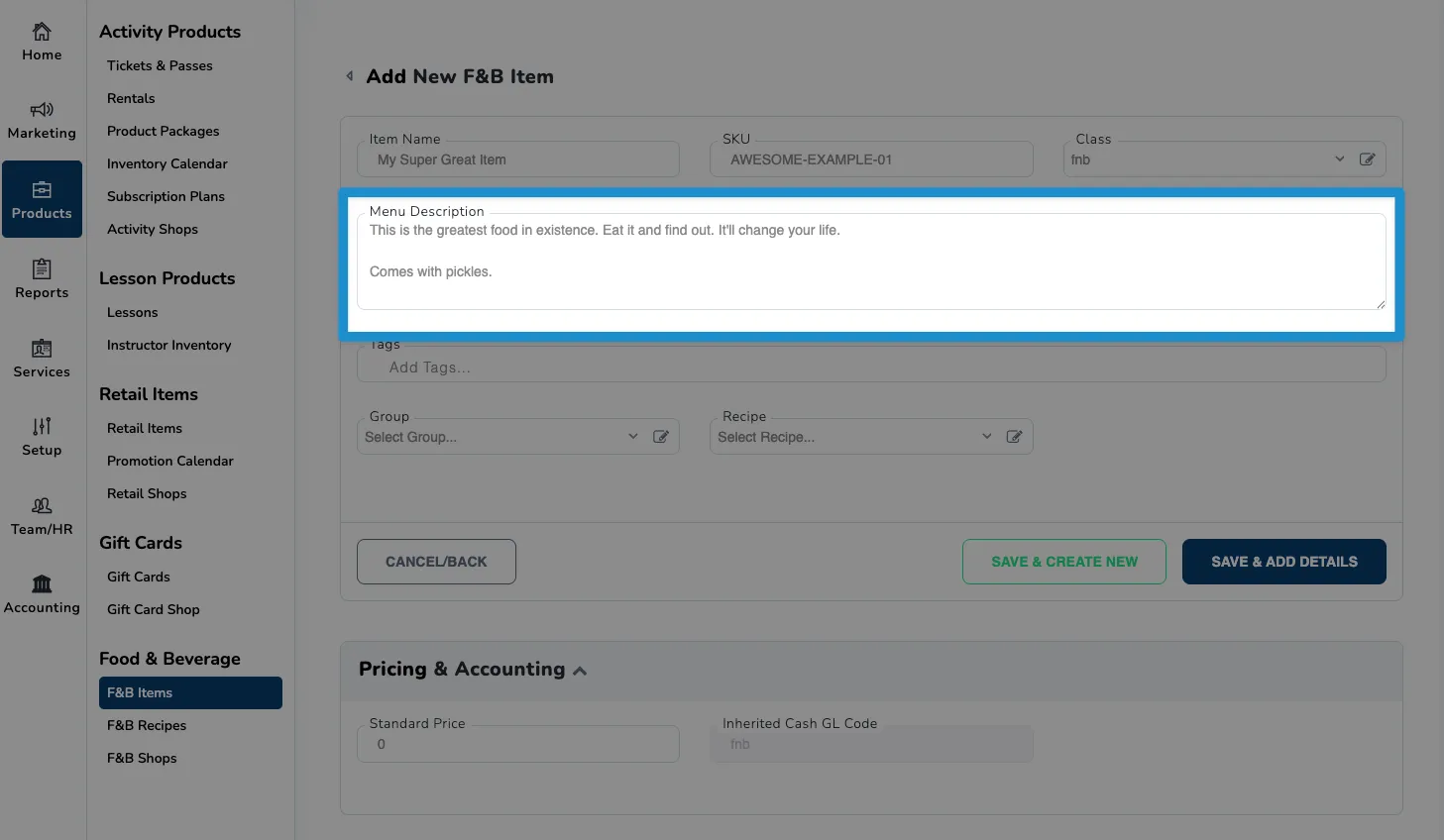
Optionally, you can use the Menu Description field to provide a detailed description of the item that will appear on menus.
-
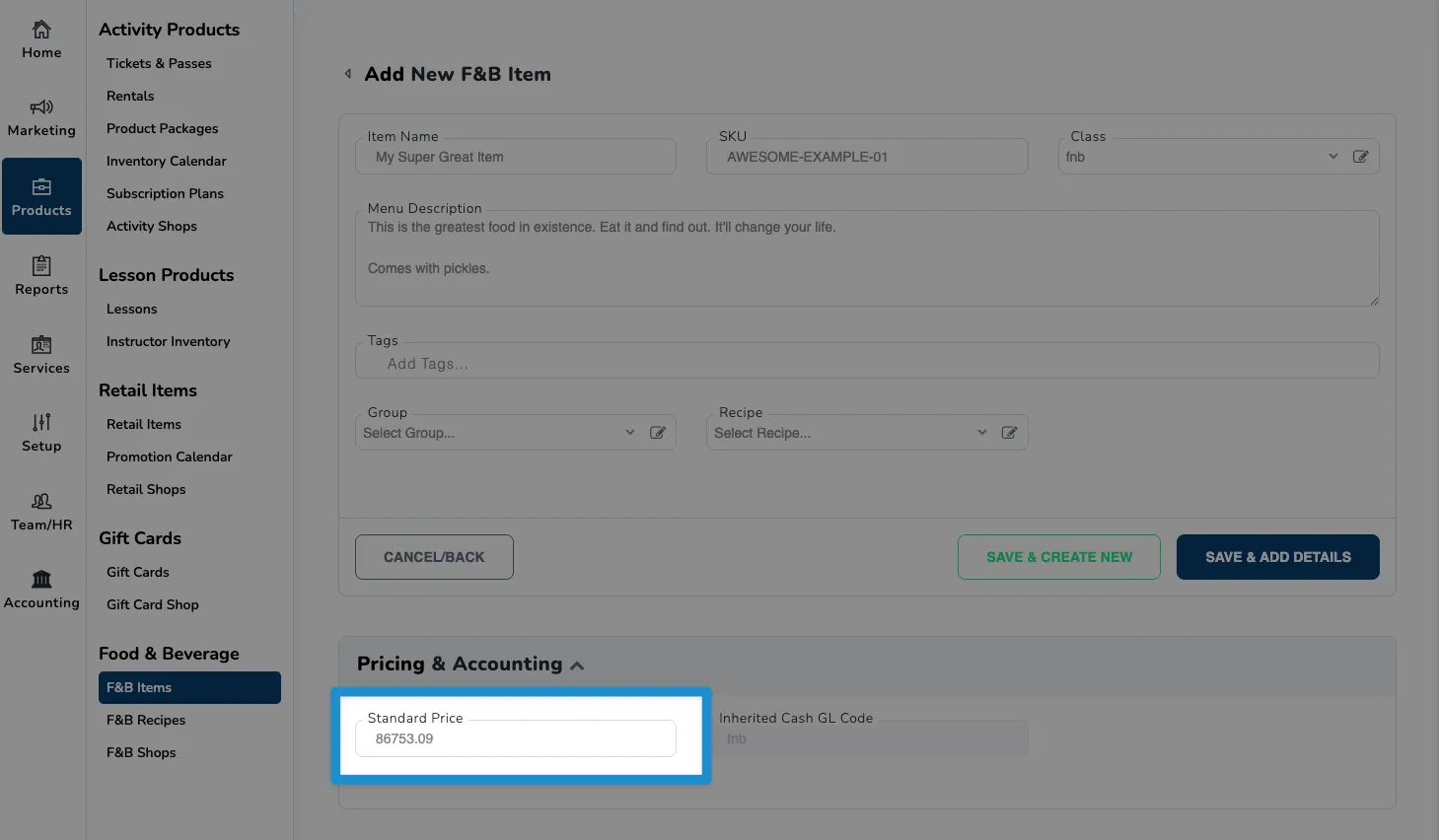
Next, set the Price field to the standard selling price for the item, excluding tax or discounts.
-
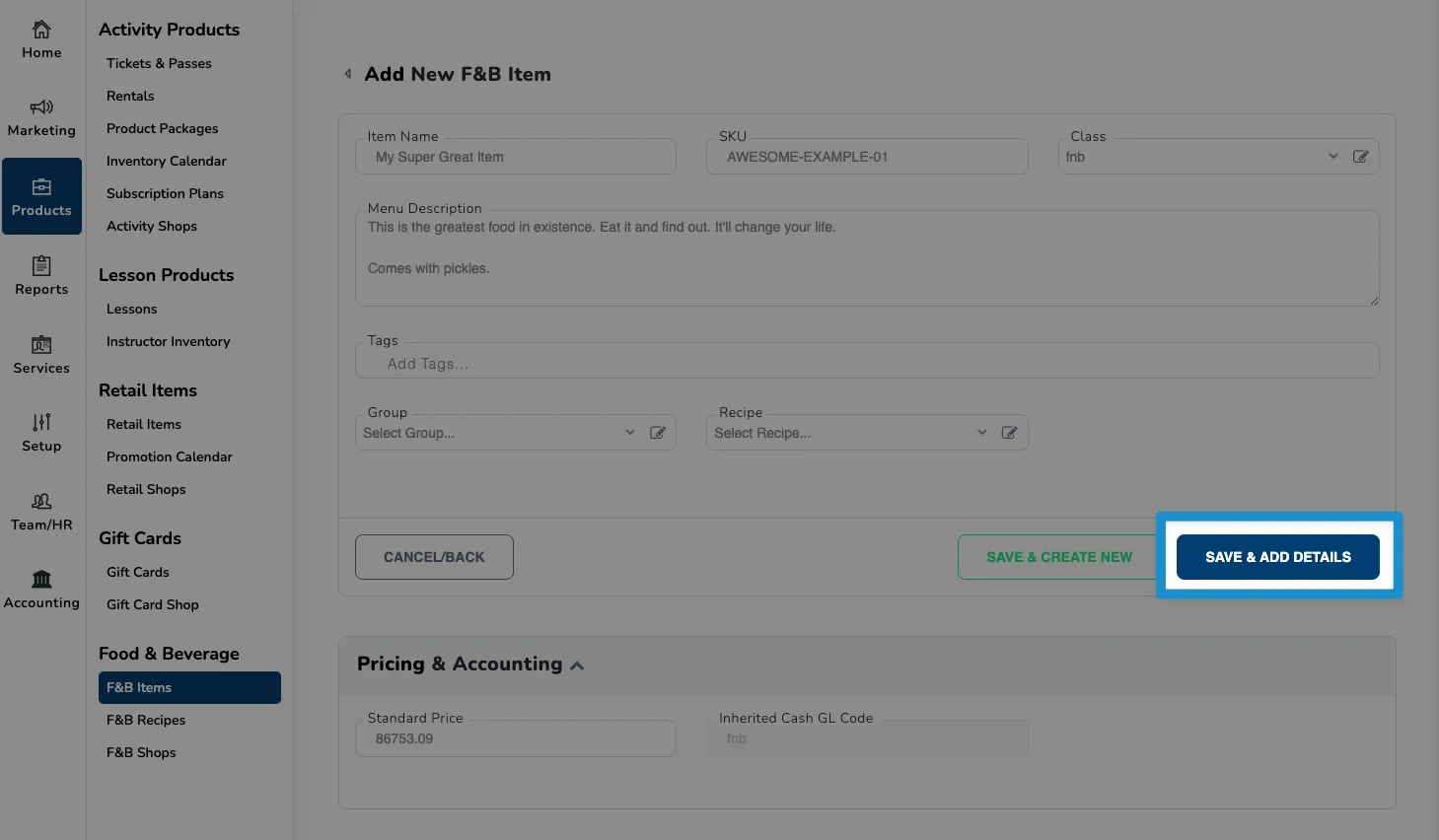
Finally, click on the Save and Add Details button at the bottom right of the screen to create your new food and beverage item.
Now that the basics are out of the way, you can further customize your item by adding modifiers, images, and other details as needed. For more information on these options, refer to the Food and Beverage Item Settings Reference documentation.