Creating and Managing Food and Beverage Item Modifiers
SnowCloud allows you to create and manage modifiers for your food and beverage items, enabling you to offer customizable options to your customers. Modifiers can include options such as add-ons, size variations, or special instructions.
Understanding Modifiers
Modifiers are additional options that can be applied to food and beverage items. They allow customers to customize their orders according to their preferences. For example, a pizza item may have modifiers for different toppings, or a coffee item may have modifiers for milk type and sweetness level.
Creating a Simple Modifier
In this guide, we’ll walk through the steps to create a simple modifier. For this example, let’s create a modifier for “No pickles” that can be applied to burger items.
-
Start by logging into your SnowCloud account.
-
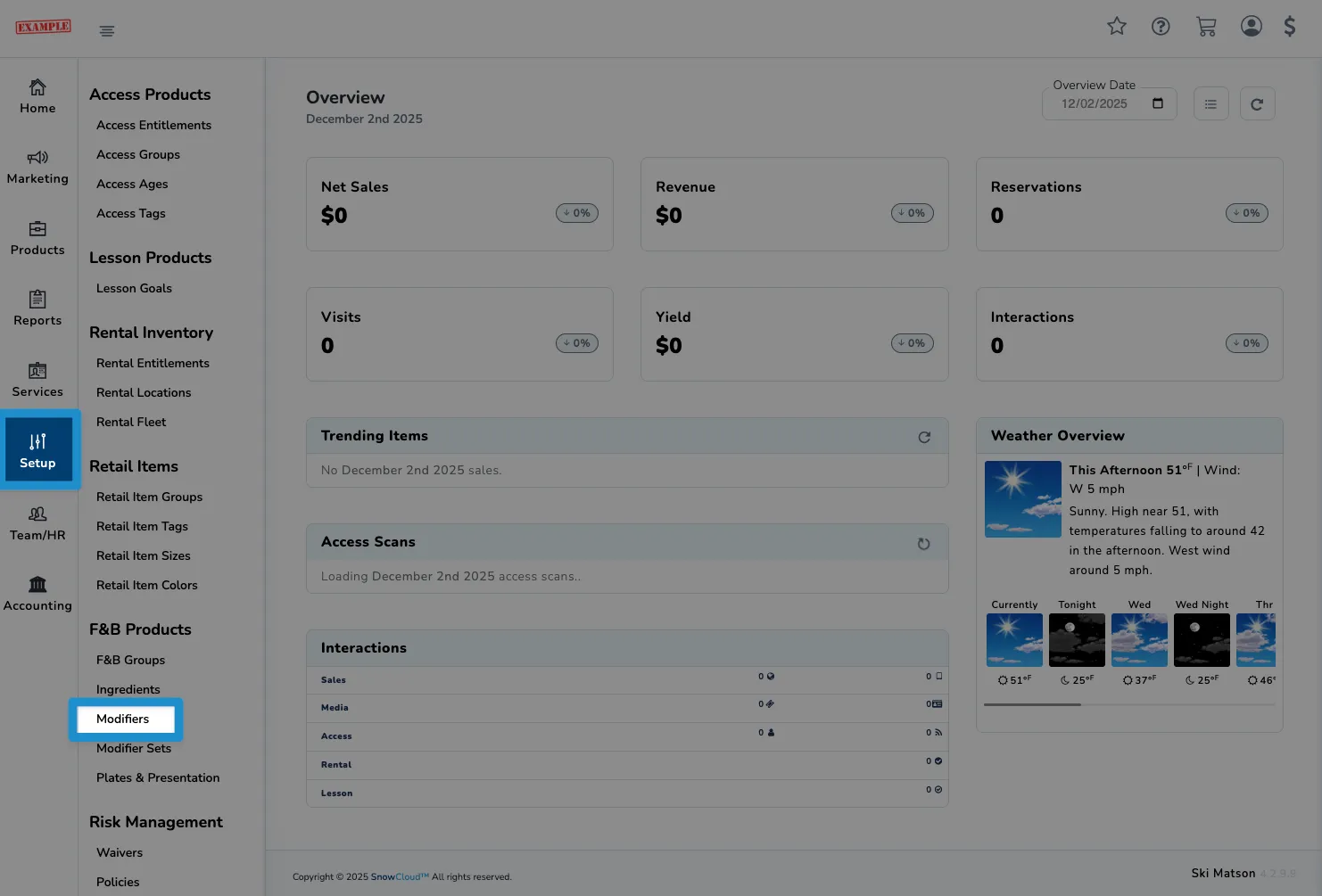
From the left side navigation menu, click on Setup, then under the F&B Products section, click on Modifiers to access the Modifiers interface.
-
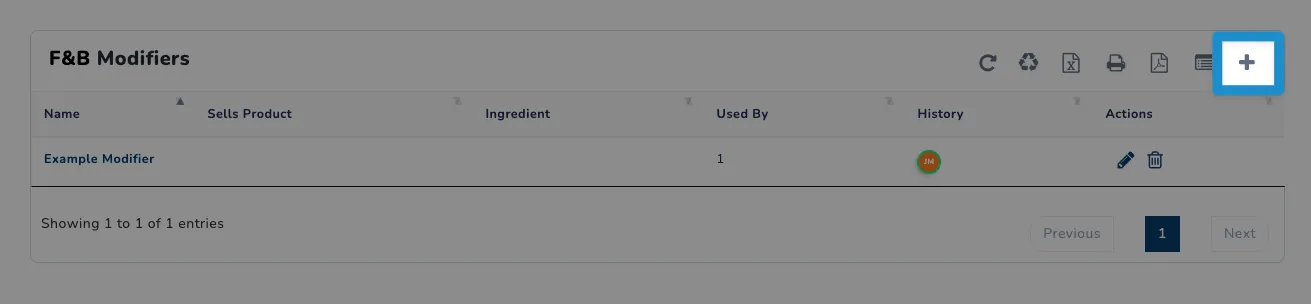
To create a new modifier, click on the plus icon at the top right of the screen.
-
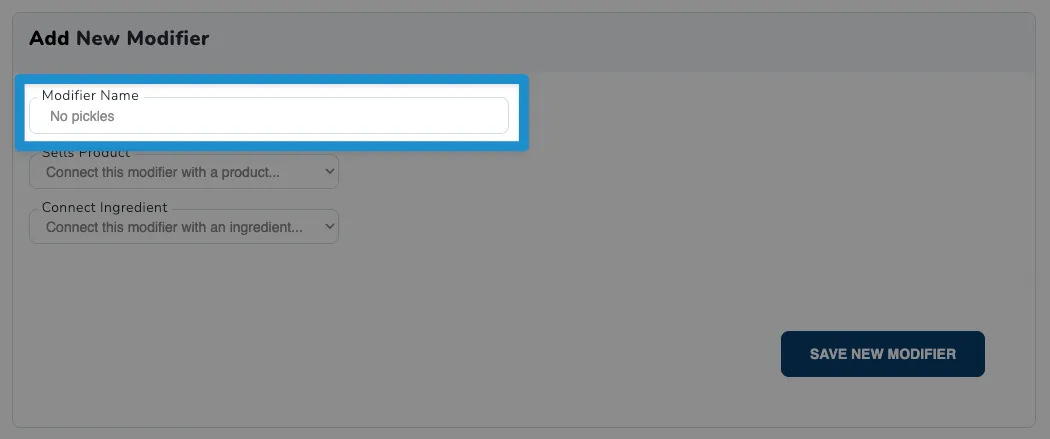
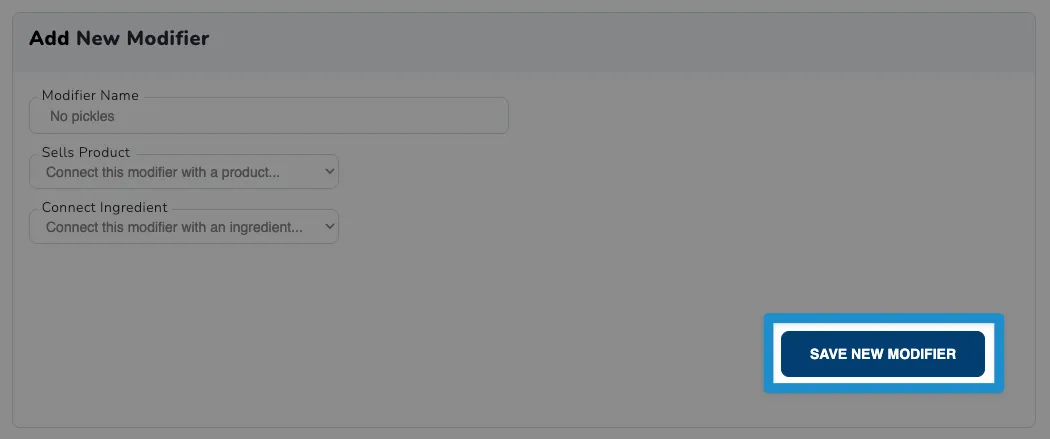
Next, enter a name for your modifier in the Modifier Name field. For this example, we’ll name it No pickles.
-
Optionally, additional fields may be available to further customize your modifier. However, for this example, we’re going to keep it simple and only set the name.
-
Finally, click on the Save New Modifier button at the bottom right of the screen to create your new modifier.
Creating a Modifier List
A modifier list is a collection of related modifiers that can be applied to food and beverage items. For example, a modifier list for a burger item may include modifiers for different toppings such as lettuce, tomato, and cheese.
Let’s walk through the steps to create a modifier list, using the example of burger toppings:
-
Start by logging into your SnowCloud account.
-
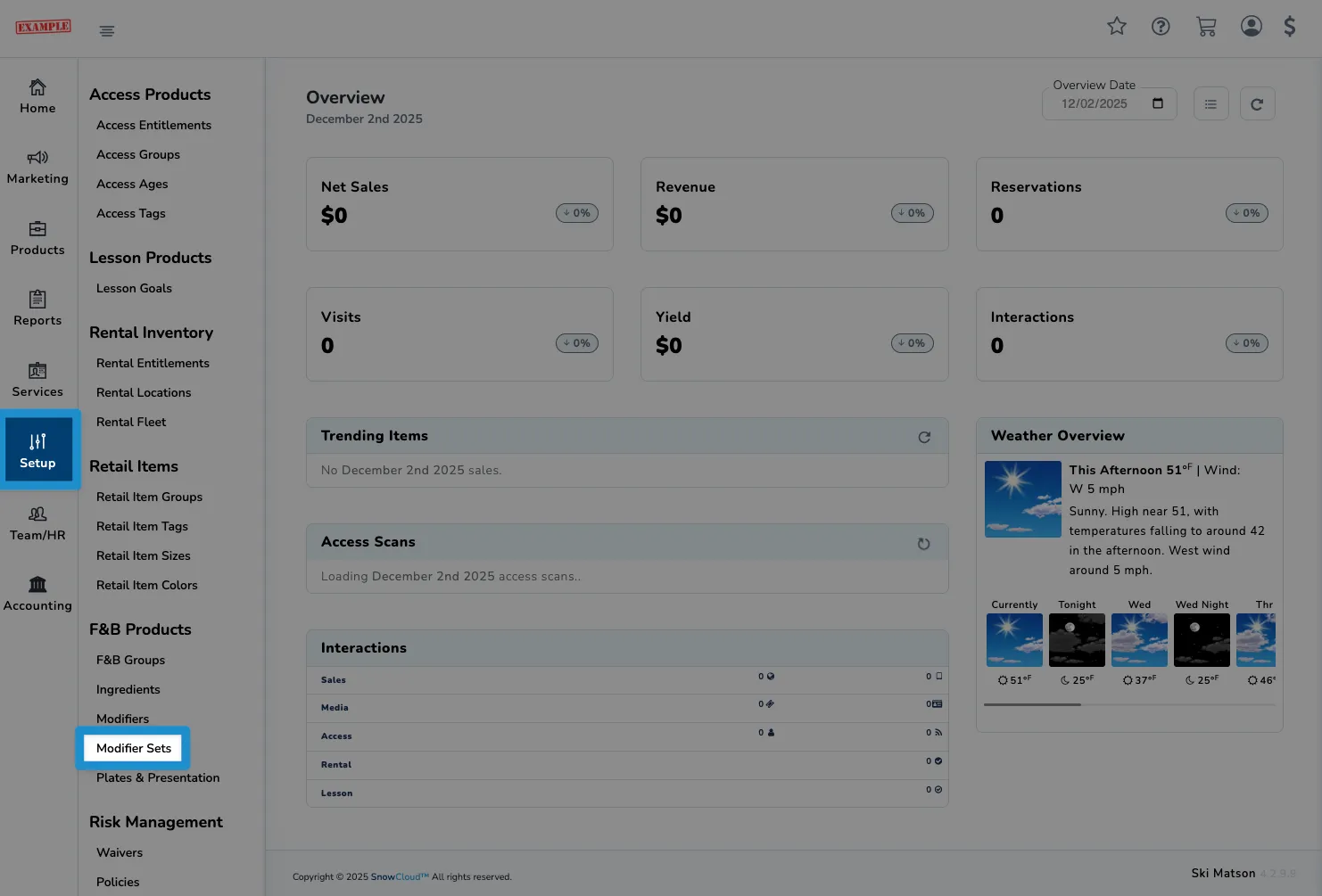
Next, access the Modifier Lists interface by clicking on Setup on the left side navigation menu, then under the F&B Products section, clicking on Modifier Sets.
-
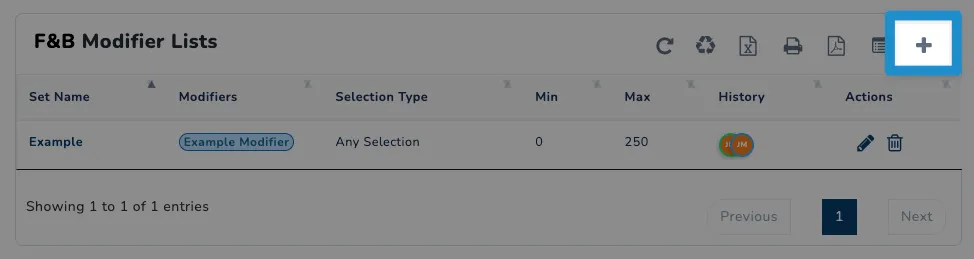
Let’s create a new modifier list for the modifier that we created in the previous section. To do so, click on the plus icon at the top right of the screen.
-
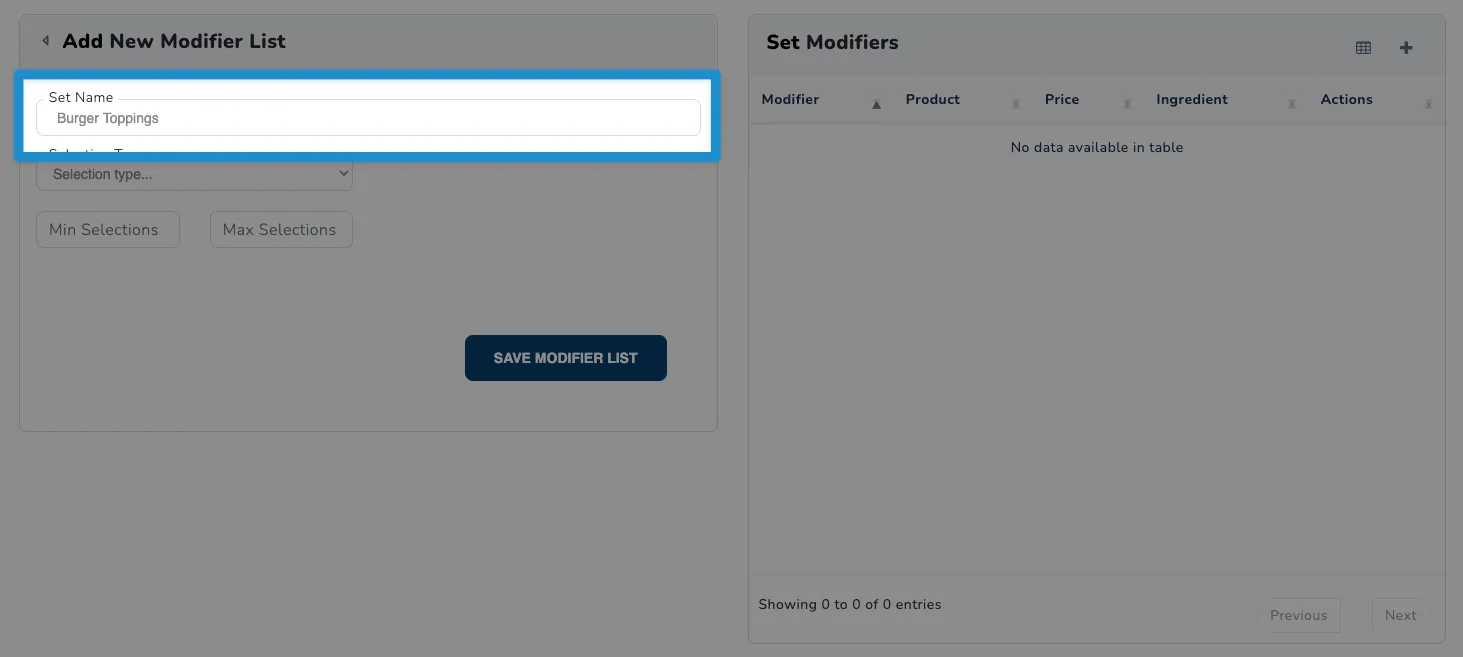
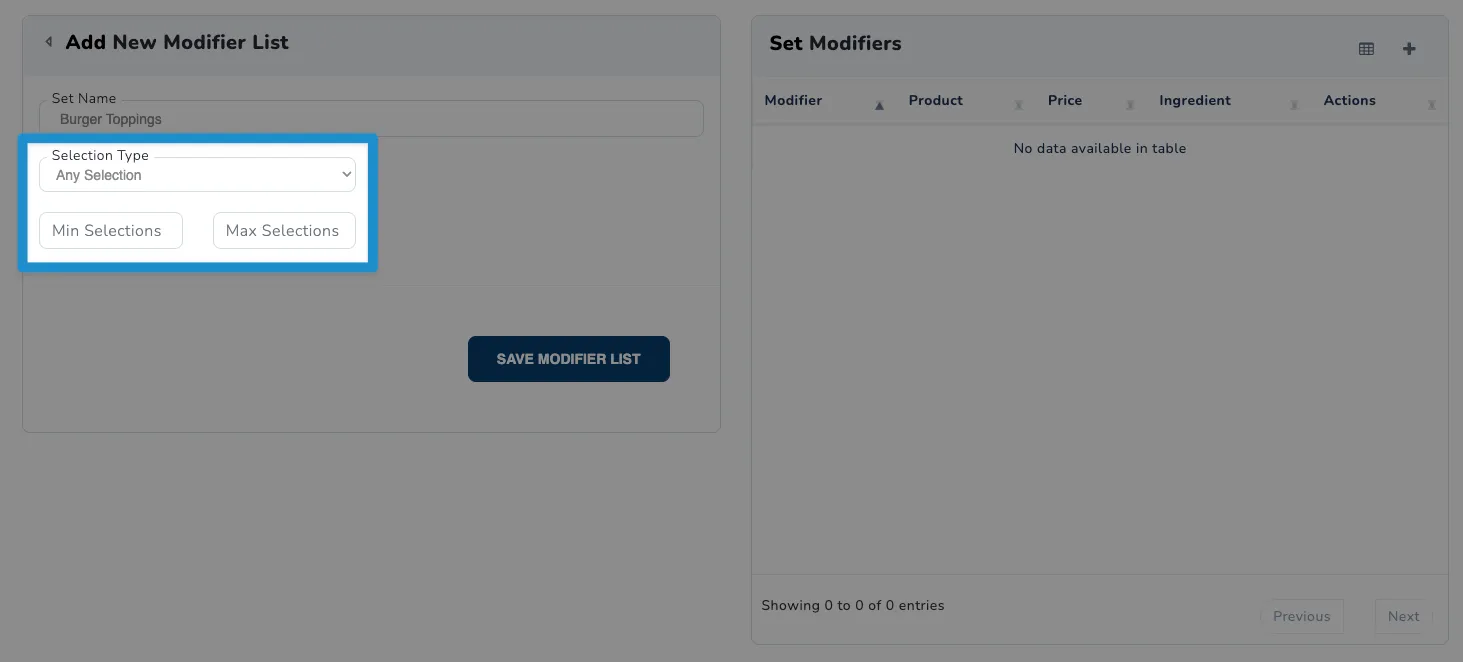
Now, enter a name for your modifier list in the Set Name field. For this example, we’ll name it Burger Toppings.
-
Below the name field, you’ll see a Selection Type field. Use this field to configure how the modifiers in this list will behave.
In this example, we’re going to allow customers to select topping modifiers freely, so we’ll set this to Any Selection.
Optionally, you can set minimum and maximum selection limits for the modifiers in this list. For this example, we’ll leave these fields blank to allow any number of selections.
-
Before we set any modifiers to the list, let’s save our changes by clicking on the Save Changes button. This will allow us to proceed to adding modifiers to the list.
-
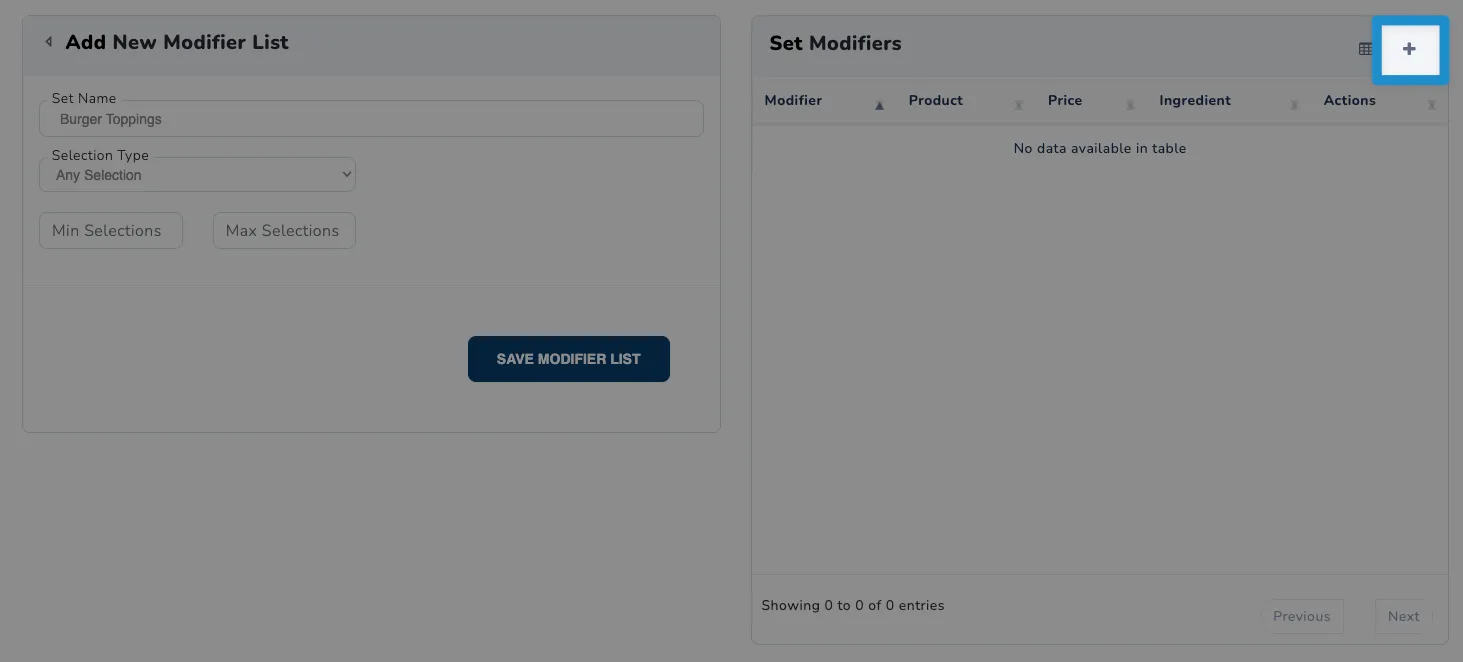
Let’s get started with adding our modifiers to the list. Within the Set Modifiers section, click on the plus icon at the top right. This will open a list of available modifiers.
-
From the list, locate the modifier that you want to add. In this example, we want to add the No pickles modifier that we created earlier.
Locate the modifier from the list and click on the Add button to the right of it to include it in the modifier list.

-
Once done selecting the modifiers to include in the set, click the X at the top right of the modal to close it and return to the modifier list configuration screen.

-
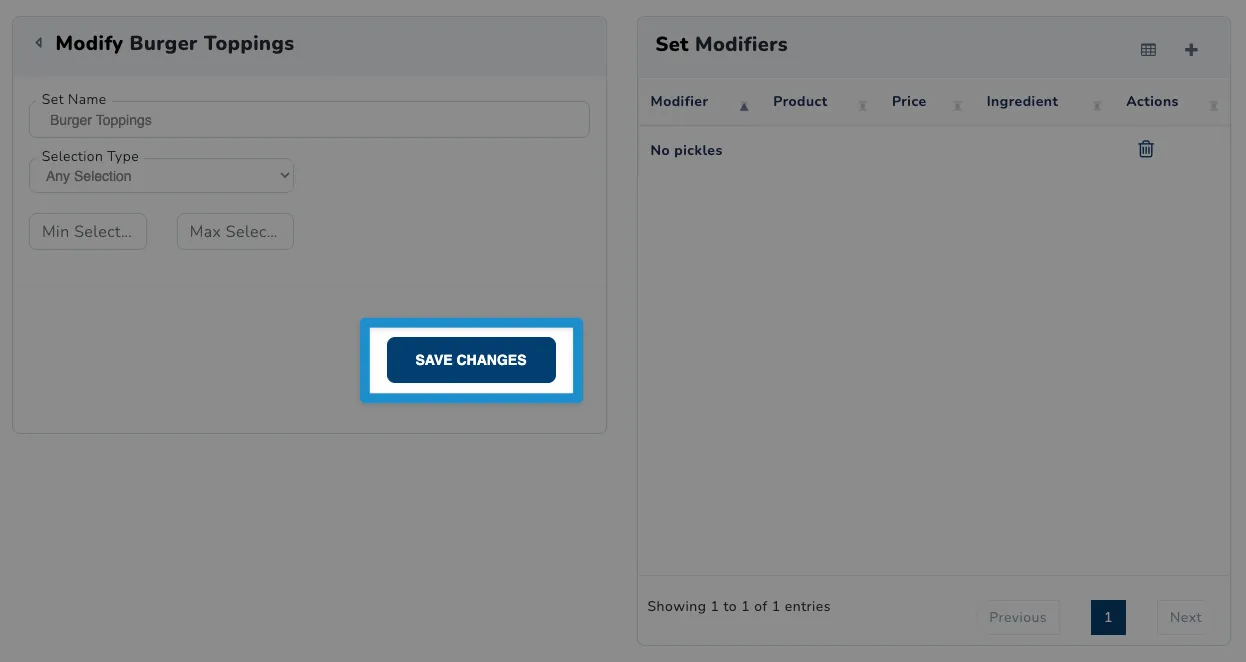
Finally, click on the Save Changes button to save the new modifier set.
Applying Modifier Lists to Food and Beverage Items
Once you have created your modifiers and modifier lists, you can apply them to your food and beverage items. This allows customers to customize their orders using the available modifiers.
To apply a modifier list to a food or beverage item, follow these steps:
-
Start by logging into your SnowCloud account.
-
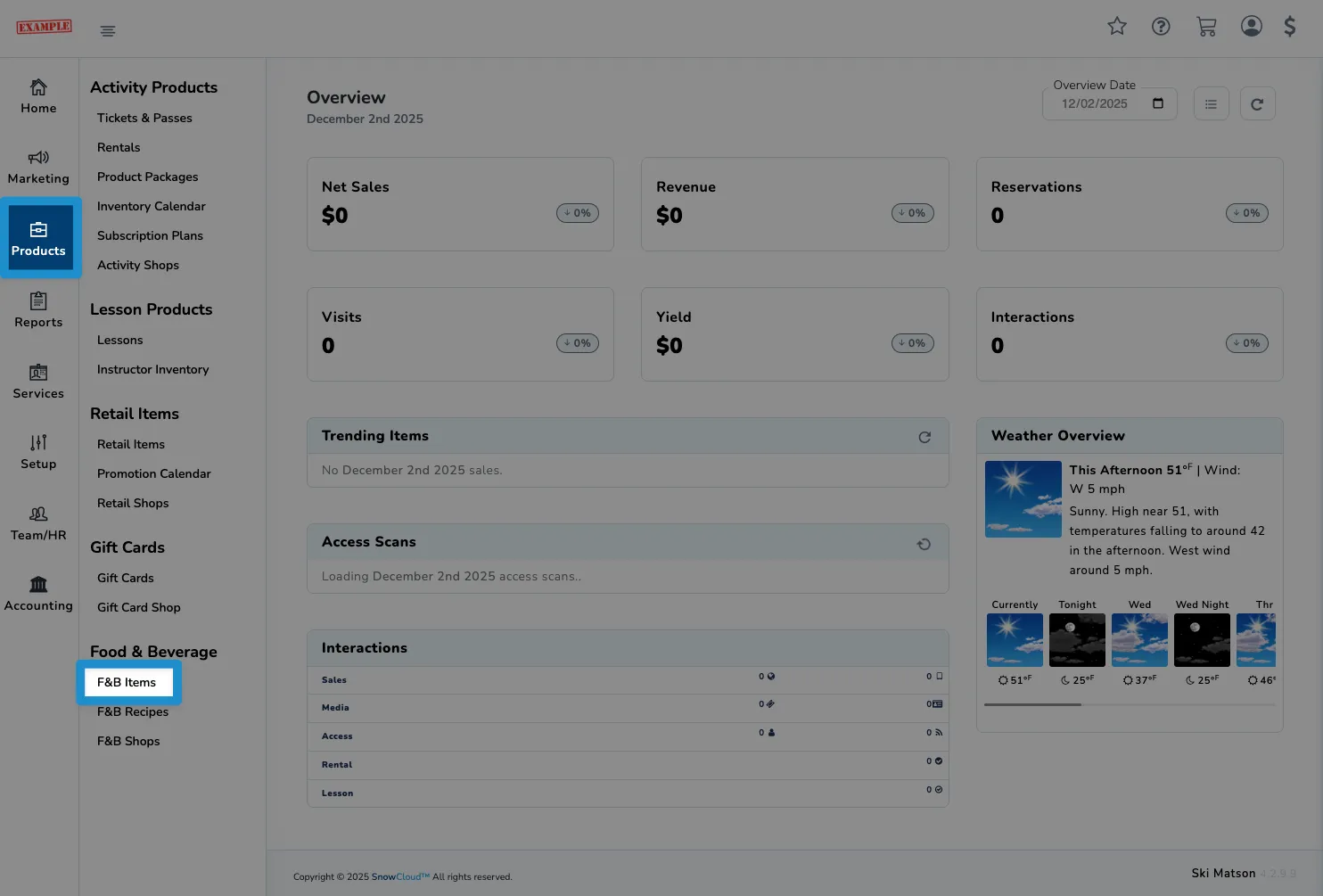
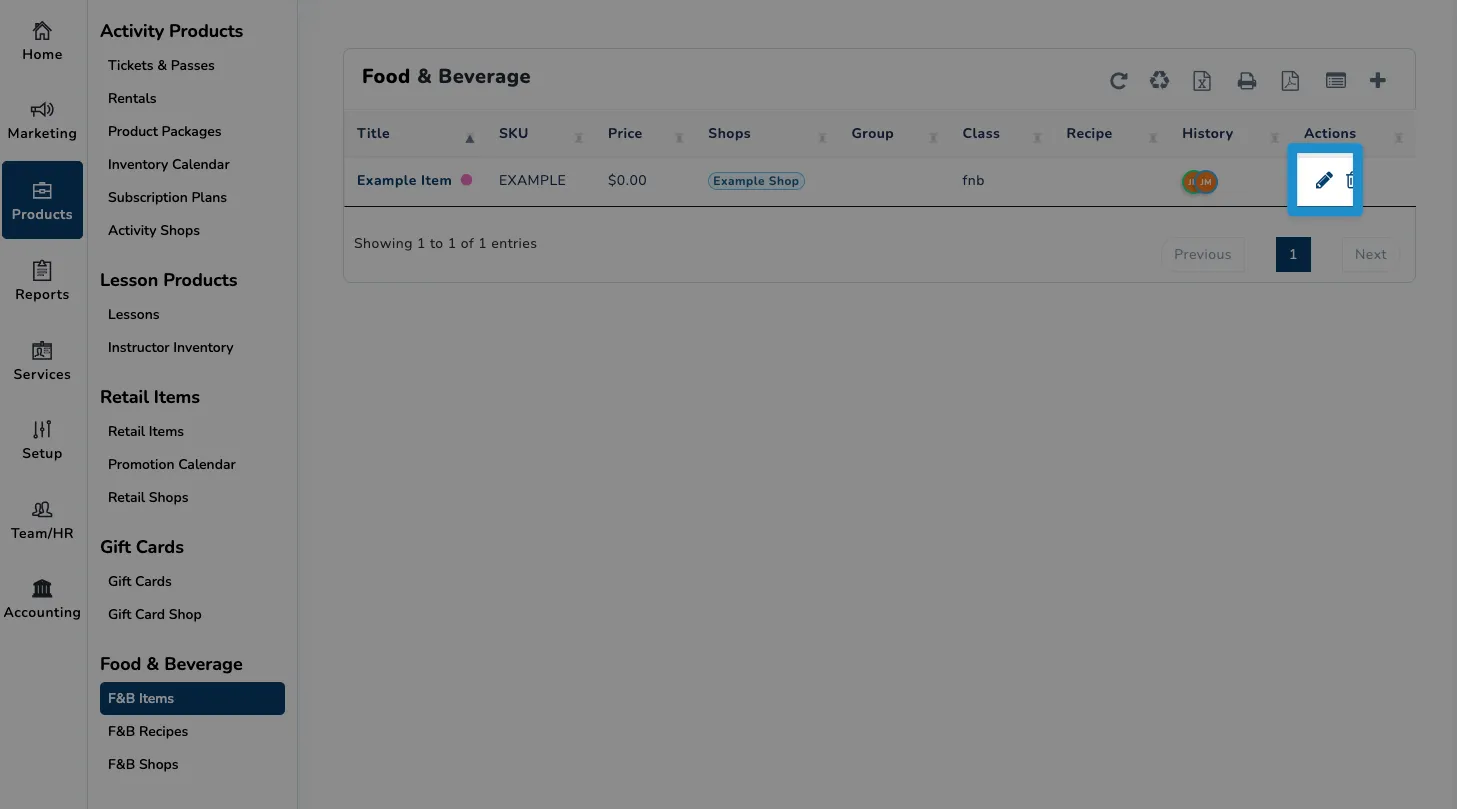
From the left side navigation menu, click on Products, then on F&B Items to access the list of food and beverage items.
-
Locate the item to which you want to apply the modifier list, then click on the pencil icon to edit the item.
-
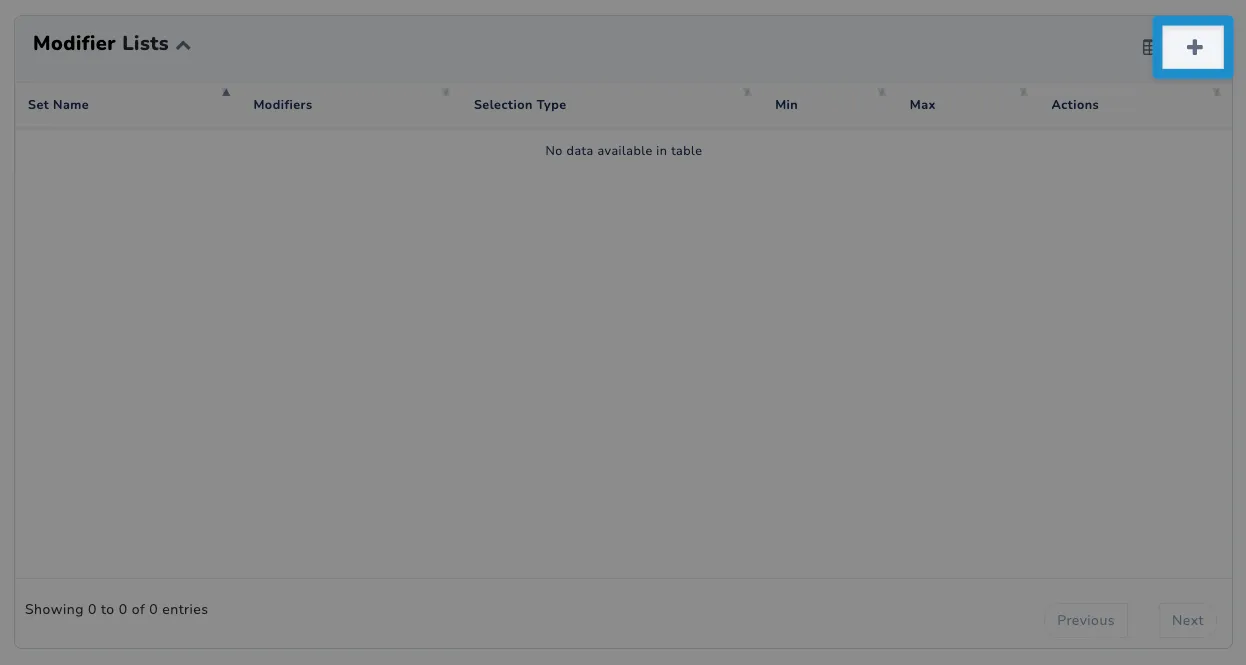
From within the item configuration screen, locate the Modifier Lists section and click on the plus icon to add a new modifier set to the item.
-
You should now see a list of available modifier sets. From here, locate the modifier set that you want to add, then click the Add button to the right of the set.

-
After adding your modifier, close the modifier set interface using the X icon.

-
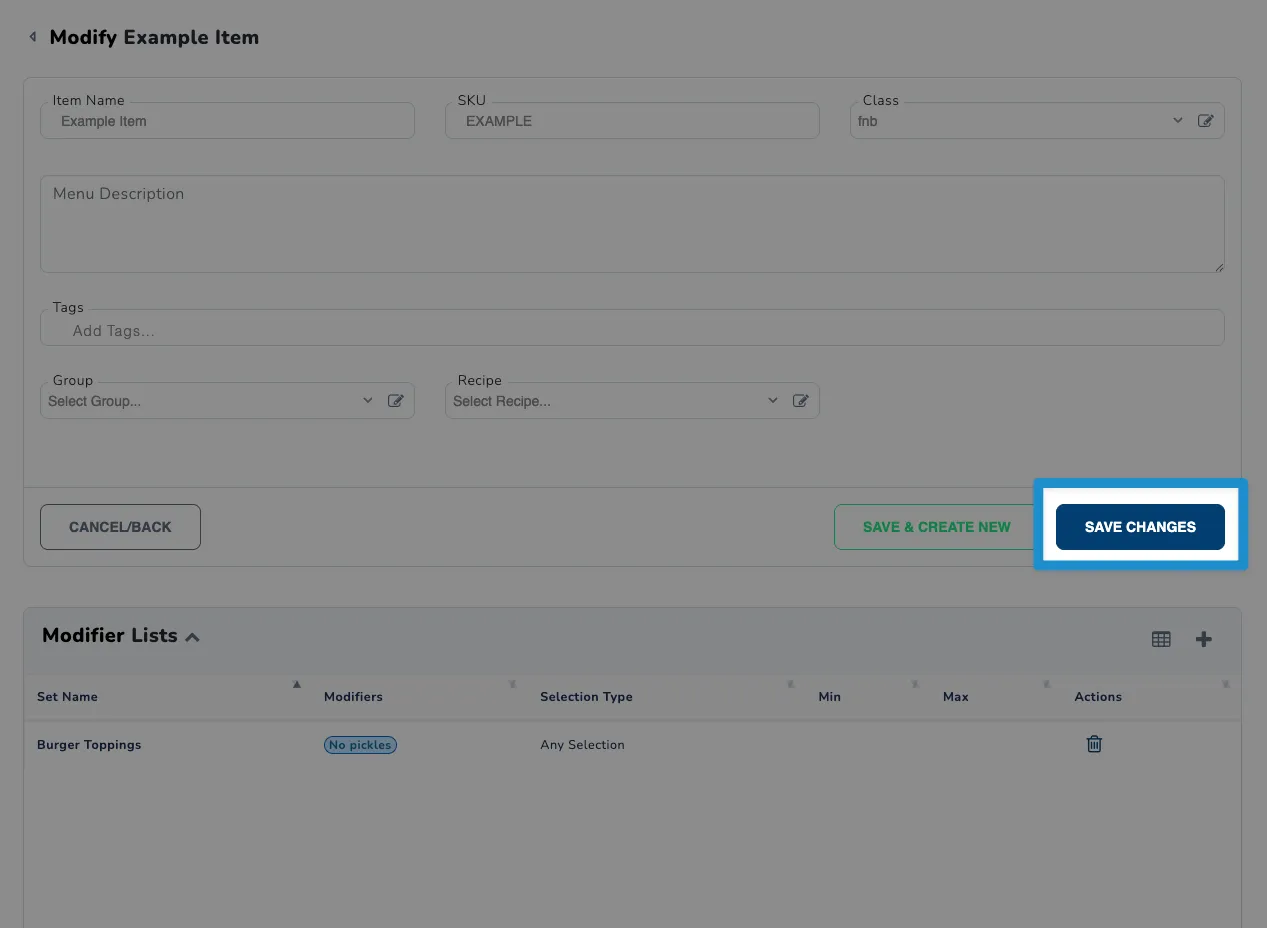
Finally, save your changes to the item by clicking on the Save Changes button.