Guest Overview
The Guest Overview page provides nearly all information relevant to any interactions a guest has made at a resort. While many different parts of the portal might link to a guest’s profile, the easiest way to access any guest’s information is by using Guest Search.
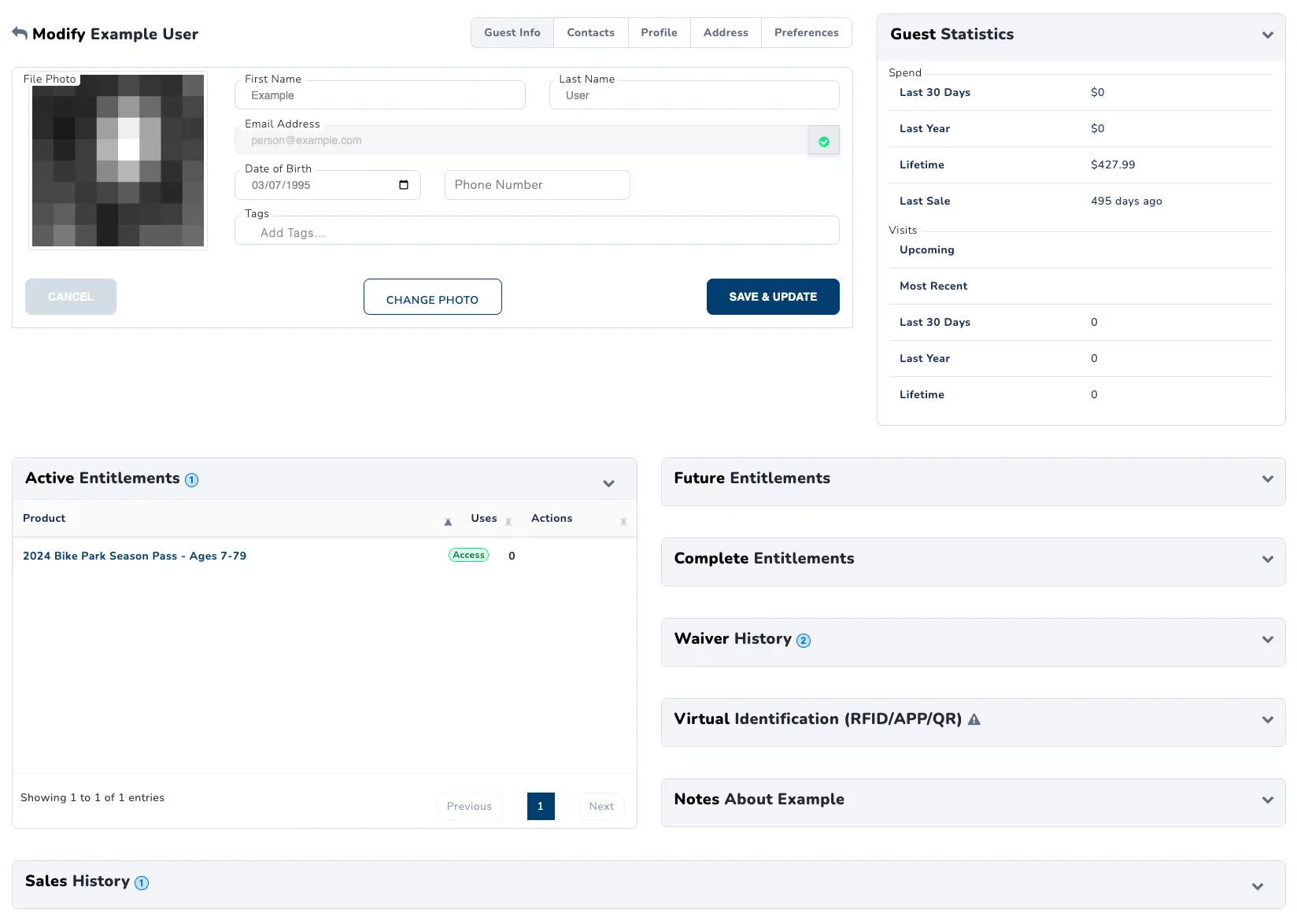
Guest Information
The guest information section contains guest personal information, as well as any set preferences. It is split into four tabs, detailed below:
Guest Info
The guest info tab contains general guest information. First and last name can be directly modified here, in case a guest entered their name incorrectly. Guest date of birth can also be modified. Phone number may be modified, however, this will not ensure that the number has been confirmed by the guest. Be sure to click Save & Update after changing any fields. The guest’s email address may be reviewed here, however it cannot be changed or updated. To change email addresses, a guest must log in to the shop and request an email address change within account options. Also within this tab are any photos uploaded by the guest. If the guest’s photo needs to be changed, you can do so my clicking change photo. If the guest has had multiple photos, you can review photo history here as well.
Profile
The profile tab contains rental specific information, including:
- Height
- Weight
- Shoe Size
- Gender
- Shirt Size
- Pants Size
While the guest is able to change this information within the shop, it can be changed within the portal for guest convenience. Be sure to click Save & Update after changing any fields.
Address
Guest address information can be collected and saved within this tab. Currently, it is not collected or used anywhere within SnowCloud.
Preferences
Guest activity preference and skill level information is collected here, including desired trail levels and terrain types.
Guest Statistics
The guest statistics section contains various sale and visit statistics, including:
- Amount spent in the past 30 days
- Amount spent in the past year
- Amount spent overall
- Amount of time since last sale
- Date of next reserved visit
- Date of last visit
- Number of visits in the past 30 days
- Number of visits in the past year
- Number of visits overall
More sale and visit statistics can be reviewed in the Most Valuable and Most Frequent guest reports.
Entitlements
There are three entitlements sections, separated by the state of the entitlements for ease of use:
- Active Entitlements are entitlements the guest can currently use.
- Future Entitlements are entitlements that cannot currently be used, but will become valid for use in the future.
- Complete Entitlements are entitlements that have either been used, or will never become valid in the future.
Entitlement usage may also be reviewed here for entitlements that have a set number of uses.
Waiver History
The waiver history section displays all waivers signed for the guest, the date and time they were signed, and the name used to sign the waiver. Click on the view button in the actions column to view the waiver.
Virtual Identification
The virtual identification section features a virtual ID card for the guest, with a barcode that can be scanned to review the guest’s profile within the operator app.
Notes
The notes section allows team members to leave notes about a guest for other team members to review. Notes made in this section are not visible to the guest, so it is useful for leaving internal notes about incidents such as pass revocations.
Sales History
The sales history section displays both sales the guest has made and sales the guest was named as the owner of a purchased ticket in. This also includes sales made in the POS where the guest’s media was scanned, or their profile was attached to the tab in another way before checkout. The following information about each sale is available at a glance:
- Sale Code: The unique 7 alphanumeric character sale identifier
- Date: The date the transaction was made
- Total: Total amount paid in the transaction
- Items: Number of items in the transaction
To review more information about each sale, click on the view button in the actions column to bring up the Order Overview page.
Linked Guests
The linked guests section gives an overview of any related guests. Guests become linked when one purchases a product for another. SnowCloud is not a social networking site, so linked guests are limited to those that have purchased for one another. The following information about each linked guest is available:
- Type: Whether the guests are family members or non-family members.
- Name: The linked guest’s name.
- Email: The linked guest’s email address. Guests that are minors may not have an email address.
- Status: Status of the linked guest, namely whether the guest has confirmed their email address and phone number.
Clicking on a guest’s name from this list will load more information about that specific guest.
Rental History
The rental history section lists any rental items and part numbers that have been issued to the guest, and whether they have been returned yet.
Scan History
The scan history section lists the locations, dates, number of times scanned, and scan times at which a guest’s media was validated.
Coupons / Vouchers
The coupons and vouchers section lists any coupons the guest has claimed or redeemed. Coupons can also be placed directly into the guest’s coupon wallet using the ➕ button in the upper right corner of the section.
Email History
The email history lists all emails that have been sent to this guest, excluding emails containing sensitive information such as verification codes and password resets. Clicking the view button will display the exact contents of the email that was sent, and clicking the mail icon will resend an email.