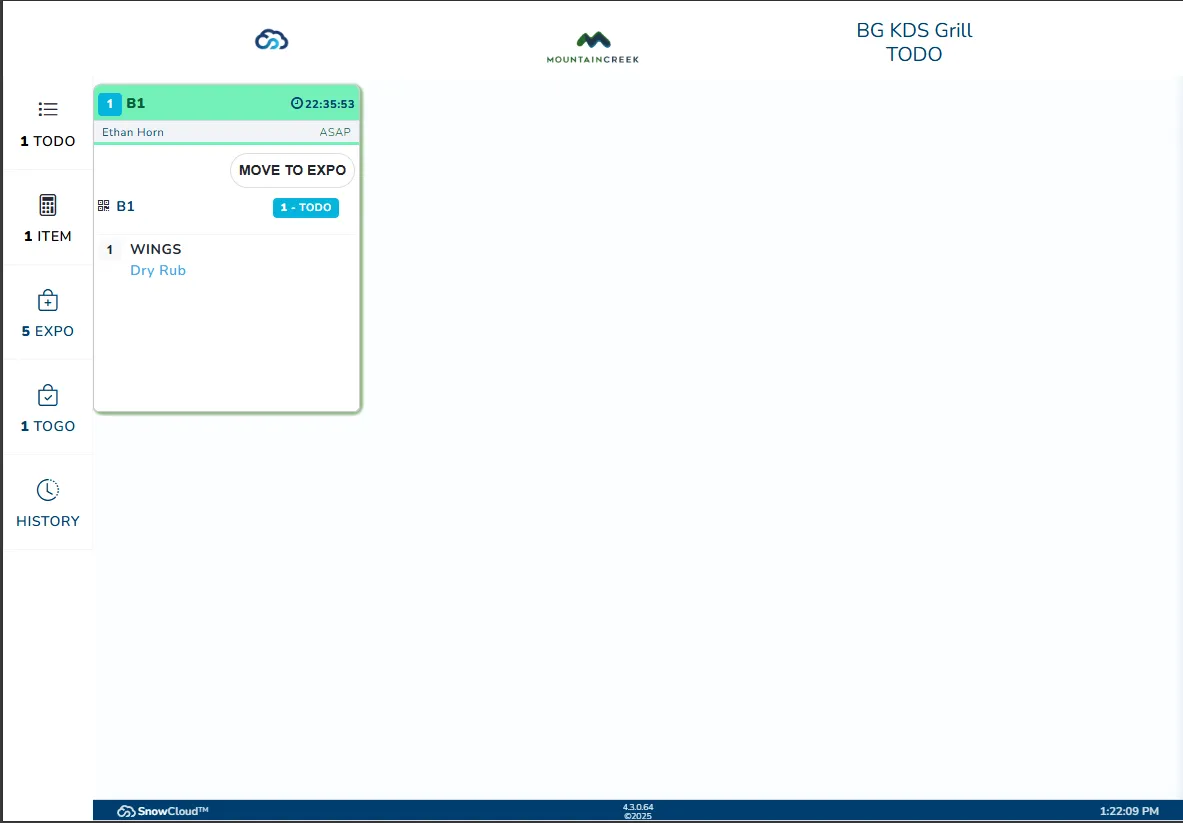
Locking a KDS Screen
In a busy kitchen environment, you need displays that are dedicated to showing orders without distraction. Locking a device to a KDS screen transforms it into a purpose-built display that only shows incoming orders for a specific station. Once locked, staff don’t need to log in or navigate through the app — the device simply displays orders as they come in.
This is especially useful when you have multiple stations in your kitchen, such as a grill station, fryer station, or expo station. By locking different devices to different KDS screens, each station sees only the orders relevant to them, keeping your kitchen workflow organized and efficient.
Prerequisites
Before locking a device to a KDS screen, ensure the following:
- The SnowCloud Operator App is installed on the device.
- KDS screens have been configured in the web portal. For more information, see Food and Beverage Kitchen Display System (KDS).
Locking a Device to a KDS Screen
-
Open the SnowCloud Operator App on the device you want to use as a KDS display.
-
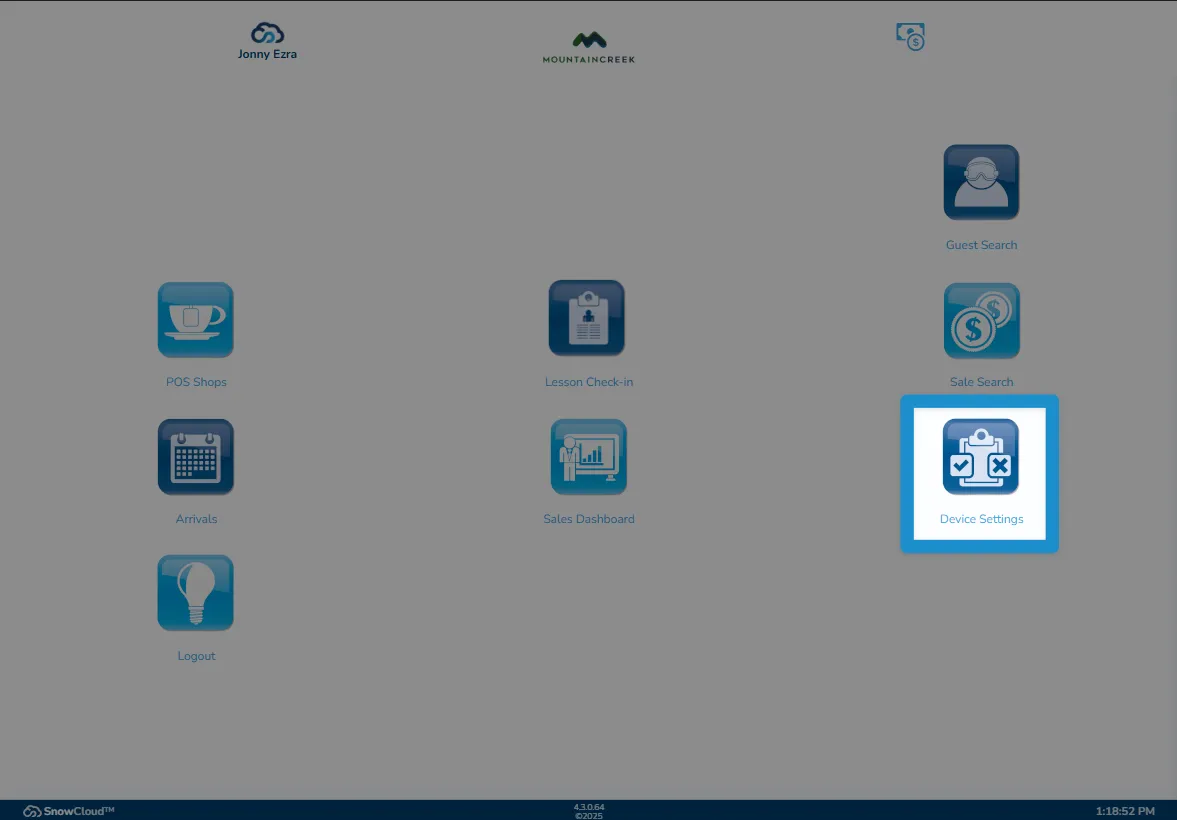
Next, tap on the Device Setup icon.
-
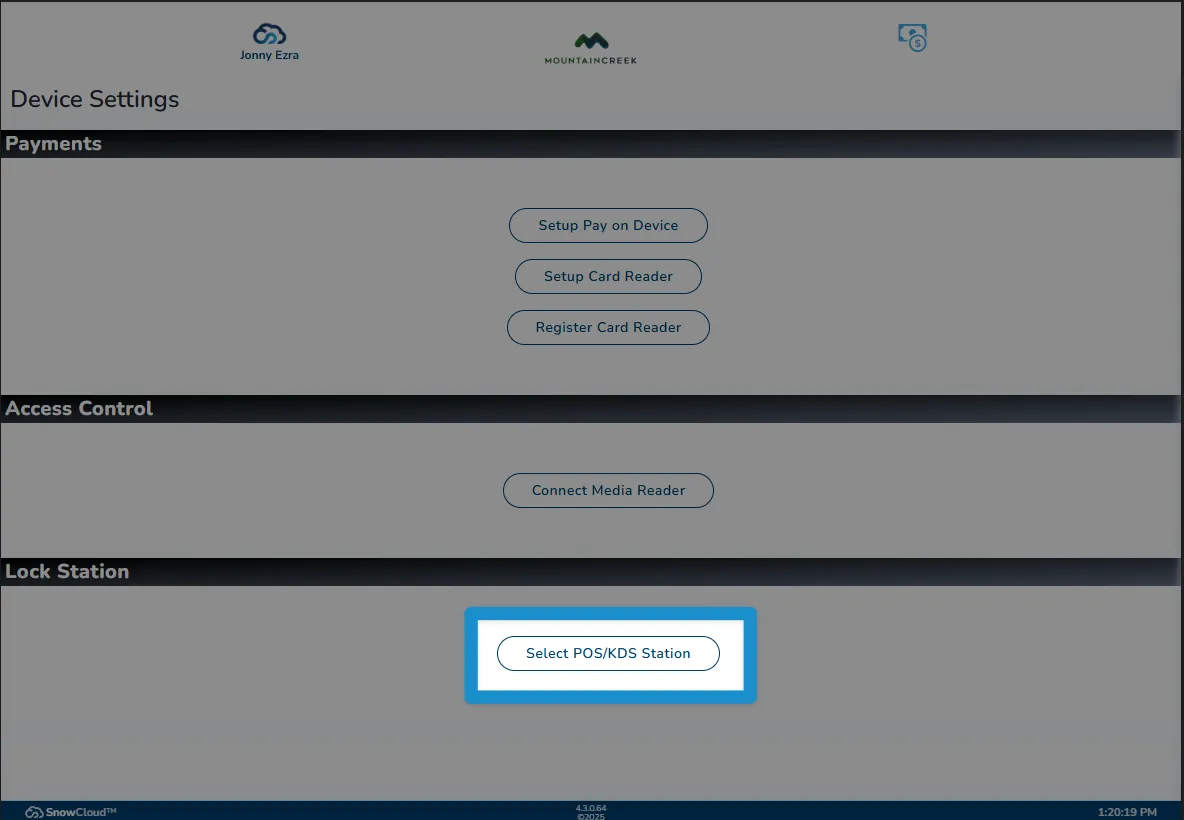
From the Device Setup screen, locate the Lock Station section and tap on the Select POS/KDS Station button.
-
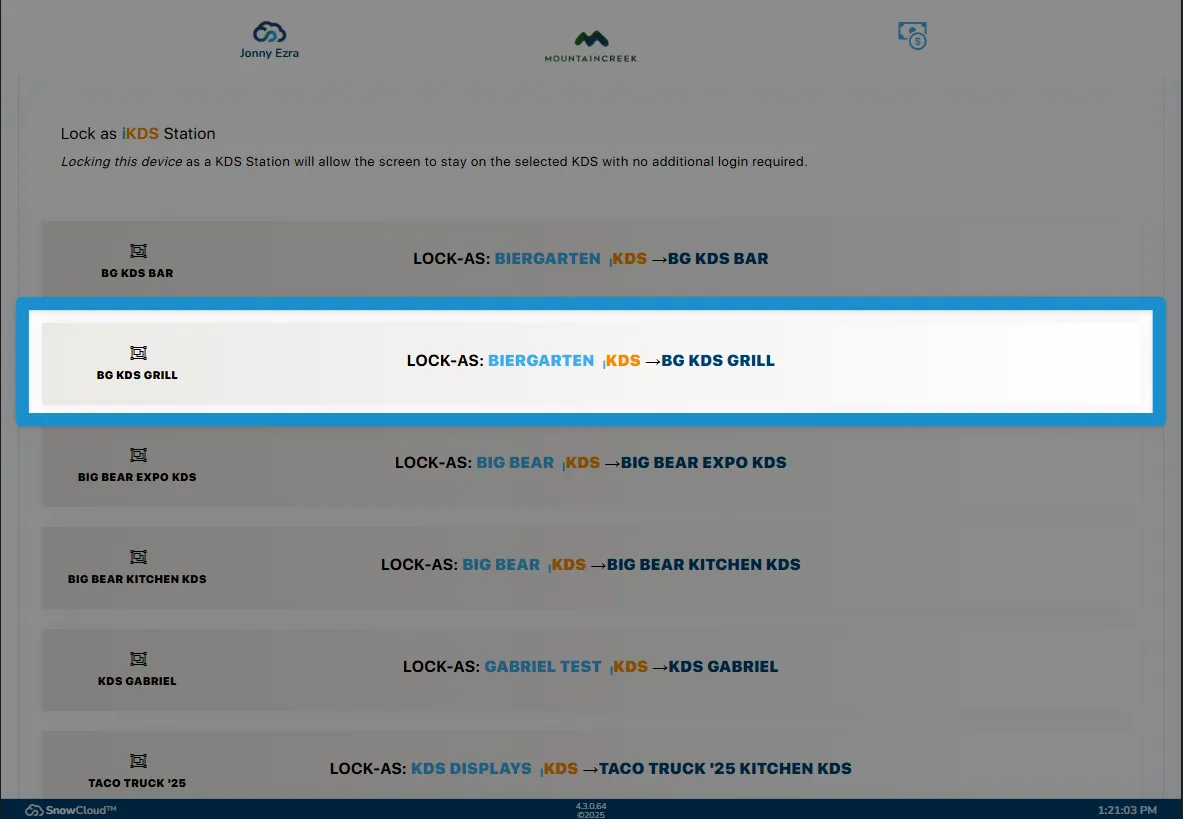
A list of available stations will appear. This list includes KDS screens that have been configured in the web portal.
If you don’t see the KDS station you’re looking for, verify that it has been configured in the web portal under the shop’s location settings.
Tap on the KDS station you want to lock this device to.
-
After selecting a station, the device will be locked to display that KDS screen. Incoming orders for the selected station will now appear on this device.