Taxes and Fees
The Taxes and Fees page allows you to view, create, and manage the taxes and fees that can be applied to product classifications. This page is located under Accounting > Accounting Setup > Taxes & Fees.
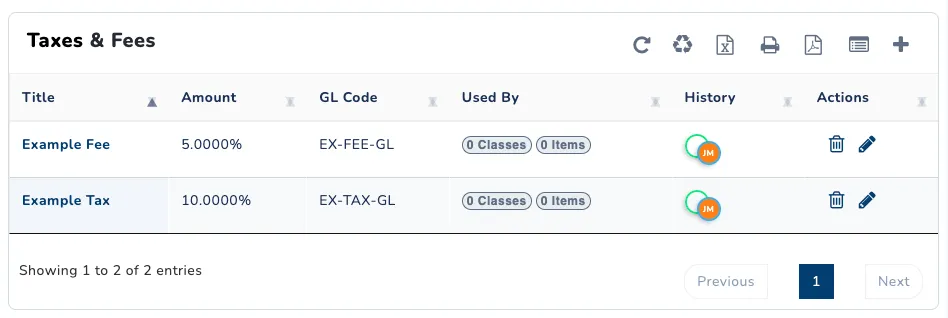
Creating a new Tax or Fee
- Navigate to the Taxes and Fees page.
- Click the ➕ button in the upper right corner of the page to open the Add New Tax or Fee menu.
- Enter a Title for this new tax or fee.
- Specify the type with the dropdown menu (Either Tax or Fee).
- Select the appropriate GL code with the GL Code Link dropdown menu.
- Specify how the tax/fee will work: Fixed amount or Percentage mode.
- Fixed amount will charge the same fee for all items. For example, a $1.00 media fee to all tickets.
- Percentage will charge a percentage based on the specified price of the product. For example, a 6.625 percent sales tax.
- Click Save New Tax/Fee.
That’s it! You can now add this tax or fee to existing product classifications, including access, rental, lesson, F&B, and retail classifications.
Using Taxes and Fees
Taxes and Fees cannot be applied directly to products. Instead, they can be applied attached to product classifications, which each product must be associated with. This allows reusability of common accounting behaviors.
The Taxes and Fees page allows you to view all set up taxes and fees. The amount collected for a tax or fee can be determined by viewing the GL Report for the linked General Ledger code. Drill down into a specific tax or fee to edit the title, GL code, and charge behavior, as well as explore what items are effected by the tax/fee.
Deleting a tax or fee will not remove it from the classifications it has been added to. Doing so will mark the tax or fee as deleted preventing it from being added to new classifications.